If you have ever finished a “quick” research task with twelve browser tabs open, three half-copied notes, and no idea which source said what, this article is for you.
The point of ChatGPT Work skills is not to memorize a long menu of @ names. The point is to stop rebuilding the same working method every time you start a task.
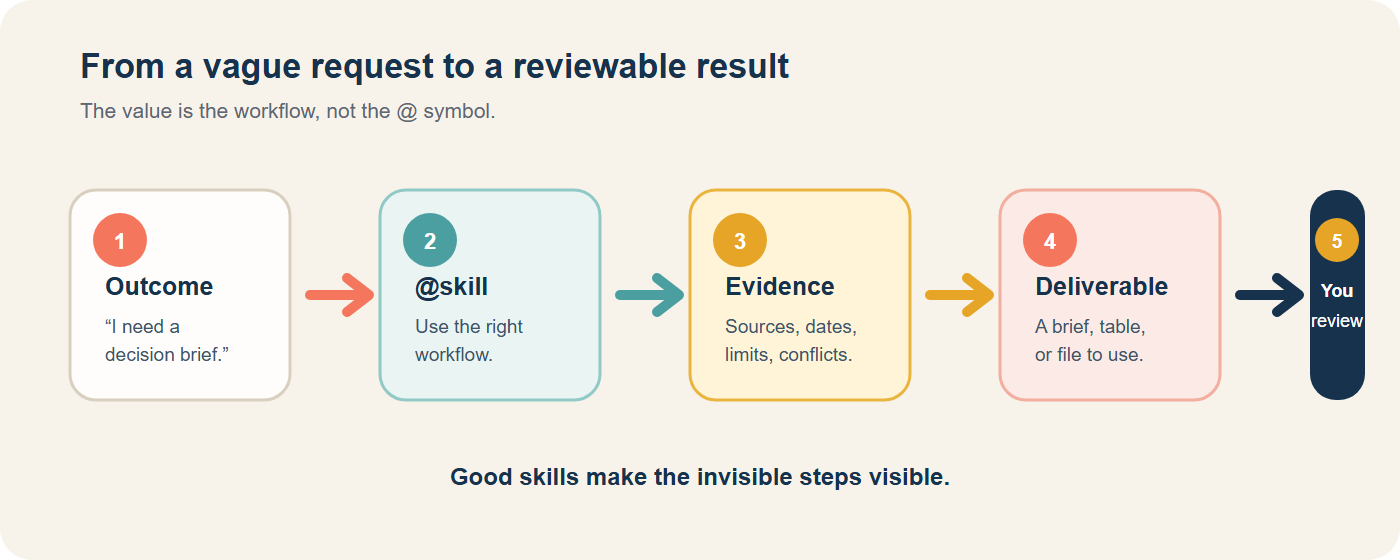
You have an outcome in mind. A skill brings the right process, resources, and tools closer to that outcome. ChatGPT’s official documentation describes a skill as a reusable workflow, and confirms that ChatGPT supports @ mentions for selecting skills explicitly. OpenAI’s Skills and Plugins guide explains the idea in those terms.
목차
- 1 Start with the benefit, not the skill name
- 2 The practical test: research 10 webpages without losing the thread
- 3 Copy this prompt for a 10-page research run
- 4 What you gain from @browser
- 5 Browser is powerful, but it is not permission to trust everything
- 6 Other @ skills, explained by the result they give you
- 6.1 When the result should be a polished document: @documents
- 6.2 When the result should be a usable table: @spreadsheets
- 6.3 When the result should be presented to other people: @presentations
- 6.4 When the result needs a visual explanation: @imagegen
- 6.5 When you keep doing the same job: @skill-creator
- 7 A simple routine for choosing the right skill
- 8 A seven-minute habit that compounds
- 9 The real takeaway
- 10 Sources and update note
Start with the benefit, not the skill name
The benefit is simple:
You spend less time explaining the process and more time reviewing the result.
Without a skill, you may need to write the same instructions again:
- visit these pages
- capture the dates
- separate facts from opinions
- keep the source links
- compare conflicts
- make a one-page brief
With the right skill, you can still give those instructions—especially for an important task—but the workflow itself becomes reusable. You get a more consistent starting point and a clearer handoff between research, analysis, and the final file.
That is why skills are most useful for work you do more than once: a weekly report, a source review, a slide deck, a spreadsheet cleanup, or a recurring research brief.
ChatGPT Work is designed for tasks with a clear outcome and a result you can inspect. It can use files, plugins, and approved tools to retrieve information, create files, and complete workflows. You can follow its progress, change direction, and approve important actions. The official “Get started with ChatGPT Work” guide makes that distinction between a quick chat answer and substantial work.
The practical test: research 10 webpages without losing the thread
Imagine this assignment:
“I need a one-page comparison of ten official product pages before tomorrow’s meeting.”
The hard part is not opening ten tabs. The hard part is collecting the same useful information from each page and remembering what is confirmed, missing, or contradictory.
This is where @browser earns its place.
The official browser documentation says Browser can open websites, gather current information, take action on websites, and help compare options or complete multi-step tasks. It also warns that page content should be treated as untrusted context. Read the current Browser documentation.
In other words, @browser is not just “a faster search box.” It can become the research assistant in a larger workflow:
- Open the ten pages you specify.
- Extract the same fields from each page.
- Preserve the URL and page title.
- Record publication or update dates when available.
- Mark claims that are not supported by the page.
- Compare the pages after the individual notes are complete.
- Turn the evidence into a brief, table, or recommendation for you to review.
The value is not that the AI read ten pages. The value is that you receive ten comparable research records instead of ten disconnected summaries.
Copy this prompt for a 10-page research run
Replace the placeholders with the pages you actually want reviewed.
@browser

I need a decision-ready research brief about [TOPIC].
Visit these 10 webpages directly, one by one:

1. [URL 1]
2. [URL 2]
3. [URL 3]
4. [URL 4]
5. [URL 5]
6. [URL 6]
7. [URL 7]
8. [URL 8]
9. [URL 9]
10. [URL 10]

For each page, record:
- page title
- publisher or organization
- publication or update date, if shown
- one to three claims directly supported by the page
- the exact URL used
- important limitations, missing information, or access problems

Do not treat search snippets as evidence. Do not fill gaps with guesses.
If a page is unavailable, paywalled, blocked, or not actually visited, mark it clearly.

After reviewing all 10 pages:
1. remove duplicate claims
2. group agreements and disagreements
3. separate confirmed facts, interpretations, and open questions
4. create a comparison table
5. write a one-page brief with a recommendation only if the evidence supports one
6. include a source list next to the claims it supports

Do not log in, submit a form, buy anything, send a message, or make an irreversible change.
Stop and ask me before any action that changes an account or external system.
This prompt does something important: it defines the research record before the research starts. You are less likely to get ten beautifully written paragraphs that cannot be compared.
What you gain from @browser
1. You get a repeatable evidence format
If page one gives you a launch date and page two gives you a price, the comparison is weak unless every page is checked for both fields. A fixed extraction template makes missing information visible.
That matters in ordinary work:
- comparing ten software plans
- reviewing ten policy announcements
- checking ten competitor pages
- gathering ten academic or industry sources
- preparing ten options for a purchase decision
2. You see uncertainty before it becomes a sentence in your report
A page may show a date but not say whether the feature is available in your country. Another page may describe a future plan rather than a current product. A good browser workflow preserves that difference.
Ask for three labels:
- Confirmed on page — the page directly supports the statement.
- Interpretation — the statement combines or explains several facts.
- Still open — the source does not answer the question.
This is a small habit with a large payoff. Your report becomes easier to defend because readers can see where the confidence comes from.
3. You get a decision brief instead of a research dump
The final output should answer the question that caused the research in the first place.
For example:
| Weak research output | Useful Work output |
|---|---|
| Ten page summaries | One comparison table with ten rows |
| A pile of links at the end | Each important claim linked to its source |
| “This seems best” | A recommendation tied to stated criteria |
| No mention of missing data | A visible open-questions section |
You still decide. The skill makes the decision easier to inspect.
Browser is powerful, but it is not permission to trust everything
This boundary matters.
The official documentation says to treat webpage content as untrusted context. A page can contain inaccurate information, hidden instructions, promotional claims, or text that tries to redirect the task. Your workflow should tell the browser skill what it may read and what it may never do without approval.
Use these guardrails:
- give it a defined URL list when source coverage matters
- ask it to report pages it could not access
- require a URL beside every important claim
- ask it to separate facts from interpretation
- do not give it permission to purchase, publish, send, or change settings
- review the final table before sharing it
There is also a practical access detail: the built-in browser uses a separate browser profile rather than automatically sharing your regular browser tabs or login session. If a task needs an account, sign in directly in the browser environment and understand what access you are granting. The Browser guide explains this profile and review boundary.
Other @ skills, explained by the result they give you
The names and availability you see can depend on your account, workspace settings, and rollout. Think of the following as workflow roles, not a promise that every workspace shows exactly the same menu.
When the result should be a polished document: @documents
Use a document-focused skill when the raw material already exists but the reader-facing result does not.
Good requests include:
- turn interview notes into a two-page decision memo
- turn a source pack into a structured report
- revise a document against a house style
- create a checklist that someone else can actually follow
The gain is not “better typing.” It is a document with a deliberate structure, headings, tables, and review points. ChatGPT’s file workflow supports creating and reviewing documents, presentations, spreadsheets, and PDFs, depending on the surface and tools available. See the official Work with files guide.
When the result should be a usable table: @spreadsheets
Use a spreadsheet-focused skill when the question contains rows, columns, calculations, or repeated comparisons.
Examples:
- clean a messy export
- compare ten offers using the same criteria
- calculate totals and flag missing values
- create a chart that makes a trend visible
The gain is a reusable calculation model instead of a one-time paragraph. Ask for the assumptions, formulas, and checks to be visible so you can review them.
When the result should be presented to other people: @presentations
Use a presentation-focused skill when your real job is to help an audience understand and decide.
Examples:
- turn research into an executive briefing
- convert a course outline into teaching slides
- add one evidence-backed slide to an existing deck
- make a comparison readable in five minutes
The gain is not more slides. It is a clearer order: what changed, why it matters, what the audience should decide, and what happens next.
When the result needs a visual explanation: @imagegen
Use an image-generation skill when an illustration, diagram, banner, or visual placeholder helps the reader understand the idea.
Examples:
- create a friendly hero illustration for an article
- turn a process into a simple visual flow
- create a visual metaphor for a training concept
- edit an existing image to match a consistent style
The gain is comprehension and attention, not decoration. Give the image a job, audience, composition, and constraints. OpenAI’s image-generation guide recommends describing those concrete factors.
When you keep doing the same job: @skill-creator
This is the skill that turns a successful one-off workflow into a repeatable one.
Suppose you now have a research method that works:
- start with ten defined URLs
- capture the same fields
- label certainty
- compare conflicts
- produce a one-page brief
- keep the sources attached
If you repeat that work every week, ask @skill-creator to package the method. The official skills guide recommends choosing one focused task, describing the workflow and expected result, testing the draft with a realistic request, and refining it before reuse.
That is how your personal way of working becomes an assistant that remembers the method.
A simple routine for choosing the right skill
Do not begin with, “Which skill should I try?” Begin with, “What must exist when this is finished?”
Use this five-question routine:
- Outcome: Do I need an answer, a research brief, a document, a spreadsheet, a deck, an image, or a changed file?
- Sources: What files, links, or connected tools may be used?
- Evidence: Which claims need a source, date, calculation, or visual check?
- Review: What must I personally approve before sharing or acting?
- Repeat: Will I do this again next week or next month?
Then use this prompt:
My desired outcome is [OUTCOME].
My sources are [FILES, LINKS, OR TOOLS].
The result must be [FORMAT].
The most important review criteria are [CRITERIA].

Recommend whether I should use Chat, ChatGPT Work, or another available environment.
If a matching @skill is available, recommend it and explain what part of the workflow it will handle.
List what you still need from me before starting.
This keeps the skill subordinate to the work. You are choosing a workflow because it serves an outcome—not collecting @ names because they look impressive.
A seven-minute habit that compounds
For your next real task, try this:
- Minute 1: write the final deliverable in one sentence.
- Minute 2: list the sources and the exact pages or files allowed.
- Minutes 3–4: define the fields or sections that must appear in the result.
- Minute 5: state what ChatGPT must not do without your approval.
- Minutes 6–7: choose the skill and start with a small test.
After the result arrives, do not only ask, “Is this good?” Ask:
- Which source supports this sentence?
- What did the skill fail to find?
- Which assumption changed the conclusion?
- Can I reuse this workflow next time?
Those questions turn a tool demonstration into a working system.
If you also use AI agents outside ChatGPT Work, our Google Antigravity /grill-me guide applies the same idea: expose the decisions before asking the agent to build.
The real takeaway
ChatGPT Work skills are valuable when they remove invisible setup from work you already understand.
@browser is a good first example because the pain is easy to recognize: ten webpages, repeated fields, scattered evidence, and a decision waiting at the end. A disciplined browser workflow can turn that mess into a source-linked table and a brief you can review.
The same logic applies to the other skills:
@documentshelps turn source material into a reader-ready document.@spreadsheetshelps turn rows into calculations and comparisons.@presentationshelps turn information into a decision-friendly story.@imagegenhelps turn an abstract idea into something people can see.@skill-creatorhelps turn a good method into a repeatable habit.
You do not need to learn every skill today. Pick one task that currently feels more manual than it should. Define the result, give the skill the evidence rules, and review the output like a colleague’s first draft.
That is the real benefit of @skills: less repeated setup, clearer evidence, and more of your time spent deciding what matters.
Sources and update note
- OpenAI — Skills and Plugins
- OpenAI — Get started with ChatGPT Work
- OpenAI — Browser
- OpenAI — Work with files
- OpenAI — Image generation
The exact skills, browser access, connected tools, and workspace permissions can change. Confirm what is available in your own ChatGPT Work interface before relying on a workflow for an important task. Last checked: 2026-08-28.